FAQ
In the world of digital asset trading, timely access to transaction records is essential for financial management, tax reporting, and asset auditing. This article provides a step-by-step guide on how to retrieve and export spot trading order history from the CoinW platform, helping you manage your trading data more efficiently.
1. Log in to the CoinW Website and Access the Trading Records Page
Open your web browser and visit the following link:
1. https://www.coinw.com/wallet/order?activeTab=overview&tab=coin
2. Log in using your CoinW account credentials. Make sure your account is active.
2. Select the Appropriate Account Type
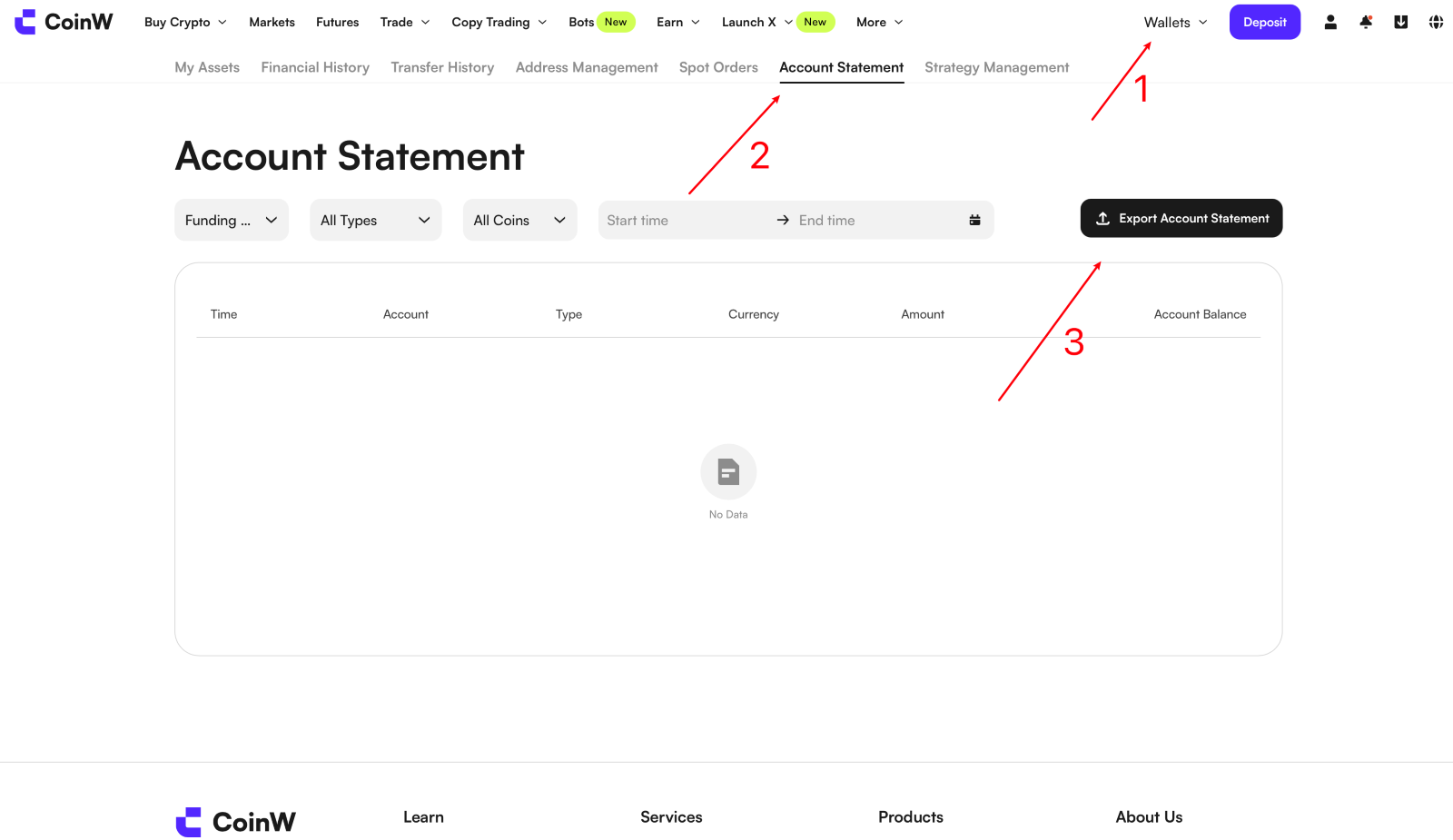
Navigate to the "Account Statement" located in the "Asset Overview" section of your CoinW account, then click on "Export Account Statement " to retrieve transaction records.
CoinW supports multiple types of accounts, with transaction records stored separately under each. Please choose the correct account type according to your needs:
Funding Account: Records deposits, withdrawals, and airdrops.
Spot Account: Contains all records of spot buy/sell trades.
Buy Crypto Account: Includes purchases made through the Buy Crypto feature, and CoinW Card usage
Futures Account: Covers futures trading orders and P&L (profit and loss) details.
Tip: Be sure to select the correct account type to avoid confusion when exporting data.
3. Select the Time Range for Flexible Data Export
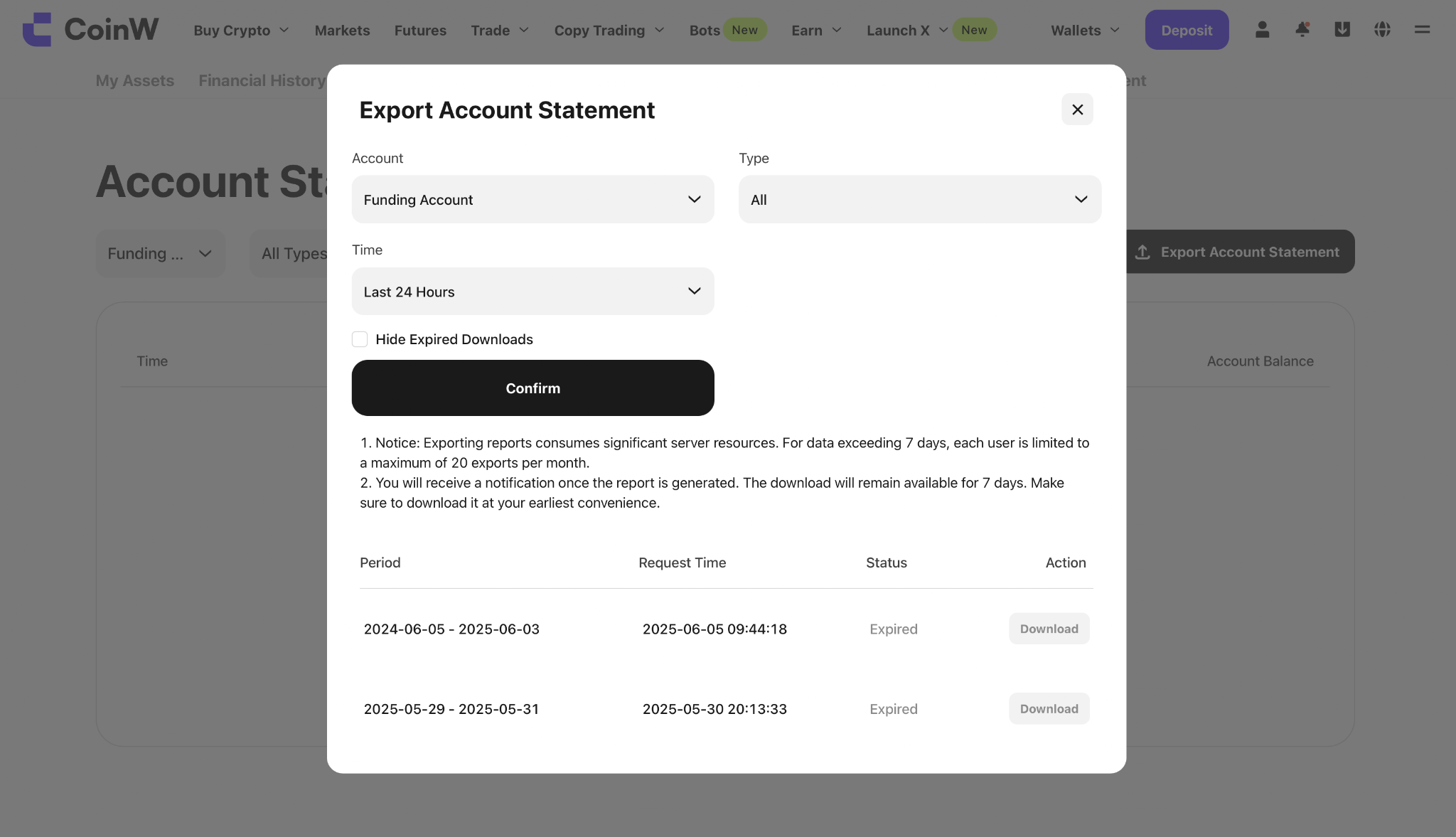
To accommodate various user needs, CoinW allows you to export data from any custom time period, with no time limit. You can:
Use the time filter to select a preset range such as "Last 7 Days" or "Last 30 Days".
Or choose "Custom Time" to manually set your desired start and end dates.
Important Note:
CoinW has optimized its export functionality, allowing users to export all transaction history data in one go. There's no need to export in batches, making data backup and analysis more efficient than ever.
4. Generate and Download the Trading Record File
Once you've selected the account type and time period:
Click the "Confirm" button.
The system will compile your transaction data into a downloadable file, typically in Excel or CSV format.
After the file is generated, a download link will appear. Click the link to save the file to your device.
The exported file includes detailed information such as:
Transaction time
Trading pair
Executed price
Quantity
Transaction type (buy/sell)
This structured data can be used for further analysis, archiving, or financial reconciliation.
5. Frequently Asked Questions and Recommendations
1. Data Accuracy Guarantee
All exported data is sourced directly from CoinW’s system records, ensuring accuracy and completeness. If you notice any discrepancies, contact CoinW’s official customer support for prompt assistance.
2. Multi-Account Data Consolidation
If you have trading records across multiple accounts (e.g., spot, contract, fund accounts), you can export each separately and consolidate them using Excel or any data processing software for unified analysis.
3. Export Frequency Limits
To maintain platform stability due to the high resource demand of large data exports, the following limitations apply:
For data exceeding 7 days: Each user can export up to 20 times per month.
Failed exports do not count toward the limit, but we recommend avoiding multiple simultaneous export requests.
4. File Storage and Download Reminders
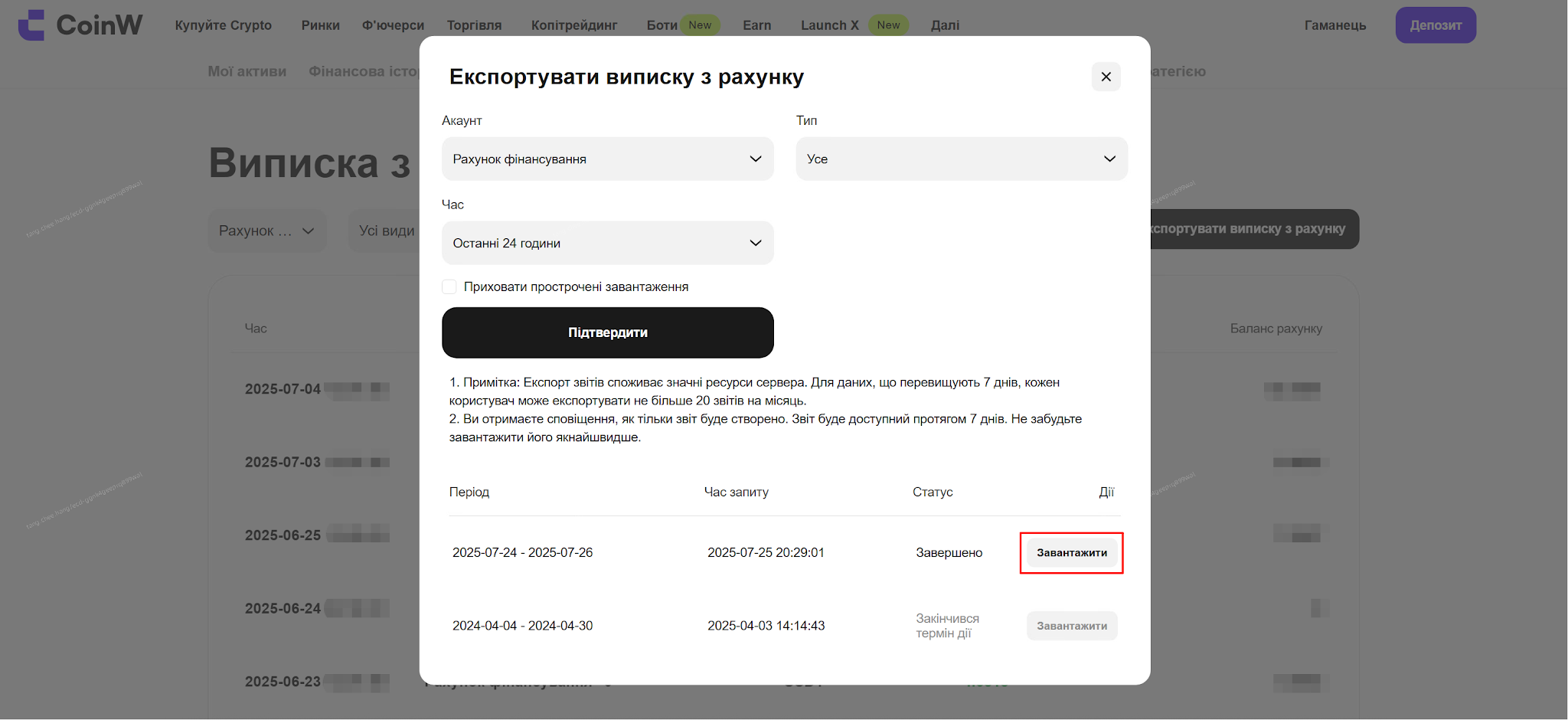
Once your bill is generated:
You’ll receive a notification via message center.
Download links are valid for 7 days. Please download the file promptly.
If the download expires, simply re-initiate the export process.
By following the steps above, you can easily retrieve and export your historical spot trading records on the CoinW platform. The flexible time selection and simplified export process ensure that you can access your transaction history with ease. Properly managing and storing your trading data enhances financial transparency and protects your digital assets.
For any questions or issues during the process, please visit the CoinW Help Center or contact online customer supportfor further assistance.
In the world of digital asset trading, timely access to transaction records is essential for financial management, tax reporting, and asset auditing. This article provides a step-by-step guide on how to retrieve and export spot trading order history from the CoinW platform, helping you manage your trading data more efficiently.
1. Log in to the CoinW Website and Access the Trading Records Page
Open your web browser and visit the following link:
1. https://www.coinw.com/wallet/order?activeTab=overview&tab=coin
2. Log in using your CoinW account credentials. Make sure your account is active.
2. Select the Appropriate Account Type
Navigate to the "Account Statement" located in the "Asset Overview" section of your CoinW account, then click on "Export Account Statement " to retrieve transaction records.
CoinW supports multiple types of accounts, with transaction records stored separately under each. Please choose the correct account type according to your needs:
Funding Account: Records deposits, withdrawals, and airdrops.
Spot Account: Contains all records of spot buy/sell trades.
Buy Crypto Account: Includes purchases made through the Buy Crypto feature, and CoinW Card usage
Futures Account: Covers futures trading orders and P&L (profit and loss) details.
Tip: Be sure to select the correct account type to avoid confusion when exporting data.
3. Select the Time Range for Flexible Data Export
To accommodate various user needs, CoinW allows you to export data from any custom time period, with no time limit. You can:
Use the time filter to select a preset range such as "Last 7 Days" or "Last 30 Days".
Or choose "Custom Time" to manually set your desired start and end dates.
Important Note:
CoinW has optimized its export functionality, allowing users to export all transaction history data in one go. There's no need to export in batches, making data backup and analysis more efficient than ever.
4. Generate and Download the Trading Record File
Once you've selected the account type and time period:
Click the "Confirm" button.
The system will compile your transaction data into a downloadable file, typically in Excel or CSV format.
After the file is generated, a download link will appear. Click the link to save the file to your device.
The exported file includes detailed information such as:
Transaction time
Trading pair
Executed price
Quantity
Transaction type (buy/sell)
This structured data can be used for further analysis, archiving, or financial reconciliation.
5. Frequently Asked Questions and Recommendations
1. Data Accuracy Guarantee
All exported data is sourced directly from CoinW’s system records, ensuring accuracy and completeness. If you notice any discrepancies, contact CoinW’s official customer support for prompt assistance.
2. Multi-Account Data Consolidation
If you have trading records across multiple accounts (e.g., spot, contract, fund accounts), you can export each separately and consolidate them using Excel or any data processing software for unified analysis.
3. Export Frequency Limits
To maintain platform stability due to the high resource demand of large data exports, the following limitations apply:
For data exceeding 7 days: Each user can export up to 20 times per month.
Failed exports do not count toward the limit, but we recommend avoiding multiple simultaneous export requests.
4. File Storage and Download Reminders
Once your bill is generated:
You’ll receive a notification via message center.
Download links are valid for 7 days. Please download the file promptly.
If the download expires, simply re-initiate the export process.
By following the steps above, you can easily retrieve and export your historical spot trading records on the CoinW platform. The flexible time selection and simplified export process ensure that you can access your transaction history with ease. Properly managing and storing your trading data enhances financial transparency and protects your digital assets.
For any questions or issues during the process, please visit the CoinW Help Center or contact online customer supportfor further assistance.